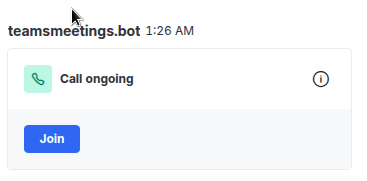
Rocket.Chat is great, but for quick meetings a lot of companies rely on Microsoft Teamas. With our app, it will be easy to start a call directly from Rocket.Chat.
Setup
Before you can create Teams Meetings, a new app registration in Microsoft Entra ID needs to be performed. The app credentials then need to be entered into the app settings in Rocket.Chat.
Entra ID Setup
The app will not work out of the box, as it is required by Microsoft to perform some steps to authenticate the app against your MS365 tenant
- Log-in to Entra ID as a tenant admin
- Register a new app. A good name might be Rocket.Chat Teams Meetings
- Note down the Client ID and the Tenant ID
- Create a new Client Secret for the app (Certificates and Secrets)
- Note down the secret key.
- Grant the following App Permissions (DO NOT use delegated permissions) for Microsoft Graph to the app:
- Calendars.ReadWrite
- OnlineMeetings.ReadWrite
- User.ReadAll
- Give your admin consent
- Open a PowerShell and run the following commands, substituting your values:
- Install-Module -Name MicrosoftTeams
- This will install the required module to manage Teams policies
- Connect-MicrosoftTeams
- This will start the auth process. Log-in as a tenant admin.
- New-CsApplicationAccessPolicy -Identity RocketChat-TeamsMeetings-Policy -AppIds „YOUR_CLIENT_ID“ -Description „Allow Meeting Creation“
- This creates a new app policy, that allows the app to create meetings
- Grant-CsApplicationAccessPolicy -PolicyName RocketChat-TeamsMeetings-Policy -Global
- This will apply the policy to your whole MS365 tenant
- Install-Module -Name MicrosoftTeams
Rocket.Chat App Setup
- Open the app settings in Rocket.Chat
- Enter the values for Tenant ID, Client ID and Client Secret from the previous steps
- If you are 100% sure, your e-mail addresses match the UPN, you tell the app to use the mail address as a user’s UPN. This will save one API call per meeting creation (about half a second on average).
Usage
After you finished the setup, you can start a Teams meeting by:
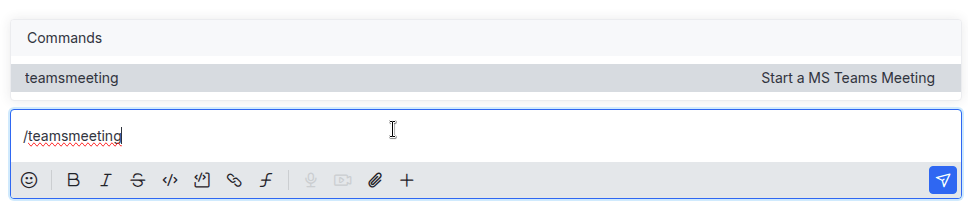
Using the Slash-Command /teamsmeeting
You can optionally add a title.
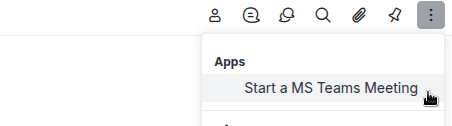
Using the kebab menu of the room:
After having created the meeting, join it as usual: